
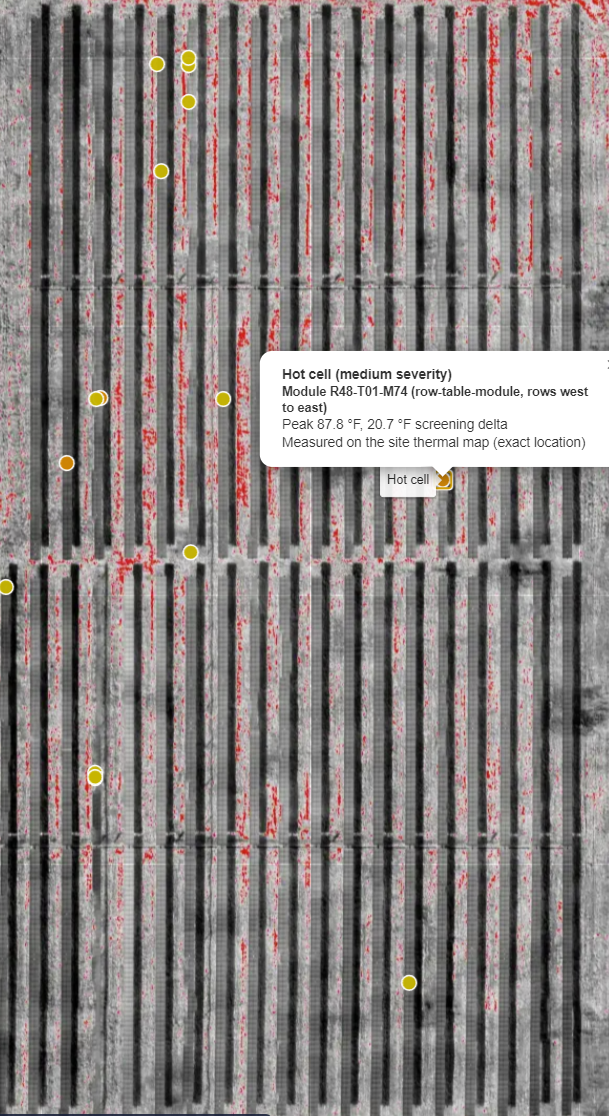
A thermal solar inspection is only as useful as the finding a crew can act on. A warm spot on a thermal image is interesting. A warm spot with a module address someone can walk straight to is a work order. Pilot Ledger SkyView now does thermal solar inspection on a site thermal map, with hot-cell pins that carry a severity, a module ID, a peak temperature and a screening delta, each measured at the exact location of the pin.
This post walks through what that map shows, how to read a single hot-cell pin, why module addressing saves the most time on the ground, and what the screening delta does and does not tell you.

What the site thermal map shows
The site thermal map puts the whole array in one view. Instead of paging through hundreds of separate thermal frames and trying to remember which row each one came from, you see every row at once, with warmer areas standing out against the panels.
Each hot cell is marked with a pin, and the pins are colored by severity. That gives you a quick read before you open anything. In the example above, most pins are yellow with a few orange ones, and they are spread across different rows rather than bunched on one table. Right away you know you are looking at a set of individual modules to check, scattered across the site, and you can start planning how a crew will move through them.
If you have worked with an orthomosaic, the idea will feel familiar: one view of the entire site rather than a folder of individual photos. Our plain-English guide, what is an orthomosaic, covers why a single site-wide view is so much easier to work from.
How to read a hot-cell pin
Click a pin and a popup shows the details. Here is the one open in the screenshot:
- Hot cell (medium severity)
- Module R48-T01-M74 (row-table-module, rows west to east)
- Peak 87.8 °F, 20.7 °F screening delta
- Measured on the site thermal map (exact location)
Taking it one line at a time:
Finding and severity. "Hot cell" is what the pin marks. "Medium severity" is a screening grade you can use to prioritize your own list of findings. Treat it as a priority hint, not a diagnosis.
Module address. R48-T01-M74 reads as row 48, table 01, module 74, in row-table-module order. The note "rows west to east" tells you which way the rows are counted, so row 48 is counted from the west side of the array. That one line removes the most common source of confusion on site: which end is row one.
Peak and screening delta. The peak is the hottest reading on that cell, 87.8 °F here. The screening delta, 20.7 °F, is a temperature difference used to screen the finding. In thermal screening generally, a delta compares a hot spot with a reference such as the surrounding, normally operating cells, so a larger delta means the cell stands out more. More on how to use it below.
Exact location. The reading was taken on the site thermal map at the pin's exact location, so the numbers belong to that spot on that module.
Why module IDs speed up crew dispatch
Without a module address, a solar finding usually travels as a screenshot with a circle on it. Someone on site then counts rows in the heat, loses count, counts again, and hopes they found the same panel the drone saw. Multiply that by a few dozen findings and the field day gets long.
A row-table-module ID turns each pin into an address. A few habits we suggest for the dispatch list you keep yourself:
- Confirm the counting direction first. The popup states the row order (west to east in this example). Check it against the site layout before the first crew visit so everyone counts the same way.
- Put the module ID on the work order. R48-T01-M74 is short enough to text, write on a clipboard or paste into a ticket.
- Group findings by row. In your own list or spreadsheet, sorting by row, then table, gives the crew a walking route instead of a scavenger hunt.
- Record the result against the same ID. When the tech logs what they found at R48-T01-M74, the next inspection has a clean history to compare against.
The payoff is simple. Less time finding modules means more time fixing them, and fewer return trips because someone checked the wrong panel.
What the screening delta means, and what it does not
The word "screening" is doing real work. Severity and delta are screening values. They tell you which cells deserve attention first. They do not tell you what caused the heat, whether a module is failing, or what the repair should be.
Thermal readings from the air are affected by conditions on the day: sun, wind, cloud cover, soiling, shading, time of day and viewing angle can all move the numbers. A cell can run warm because of debris or a shadow just as easily as because of a fault in the module.
So the right way to use a hot-cell pin is as a lead. A qualified technician should verify each finding in the field before anyone calls it a defect, files a claim or replaces hardware. Your job as the pilot is to hand that technician a clear, prioritized list with exact addresses. The site thermal map and its pins make that list easy to build.
A simple workflow for your next solar job
A simple routine we suggest, kept in your own notes or spreadsheet:
- Capture compatible calibrated imagery. The SkyView Thermal Inspections add-on needs compatible calibrated imagery, so check your thermal setup before you book the flight.
- Open the site thermal map. Scan the whole array and note where pins cluster and which severities show up.
- Work through the pins. Open each one and note the module ID, severity, peak and screening delta in your own list.
- Build the dispatch list. Sort your list by severity, then by row and table, so the crew handles the most important findings first along a sensible route.
- Hand off for field verification. Send the list to a qualified technician and log their findings against the same module IDs.
Where thermal solar inspection fits in SkyView
Thermal solar inspection is part of the SkyView Thermal Inspections add-on, which brings roof and solar inspection workflows together in one package. It requires an active SkyView subscription and compatible calibrated imagery. SkyView Desktop is a Windows application, and your quotes, invoices and client records sit in the same Pilot Ledger account as your maps, so the inspection and the invoice for it live side by side. For the processing side of the job, see our guide to processing solar thermal drone images on your own computer.
If you are still choosing tools for the RGB side of your mapping work, our buyer's guide to orthomosaic software for drone pilots covers what to look for.
SkyView is available now. See the plans and add-ons at pilotledger.com/#pricing and add Thermal Inspections to your next solar job.